Why Shopify variant inventory gets out of sync, and how to fix it
Last updated 15 October 2026
If variants of the same product show different stock when they should match, the cause is almost always the same: something changed one variant and nothing updated the others.
The usual causes
- A sale or return changes only the variant that was bought or returned.
- Someone edits one variant's Available number in the admin or on the Inventory page.
- A spreadsheet import, an ERP, a warehouse system or another app writes a number to one variant.
- A point-of-sale sale at a store location reduces only that variant at that location.
- A stock transfer or purchase order receives stock into one variant.
How to find products that have drifted
On the Inventory page, search for the product and compare its variants at each location. For a large catalogue, export the inventory and look for products where variants that should match have different numbers.
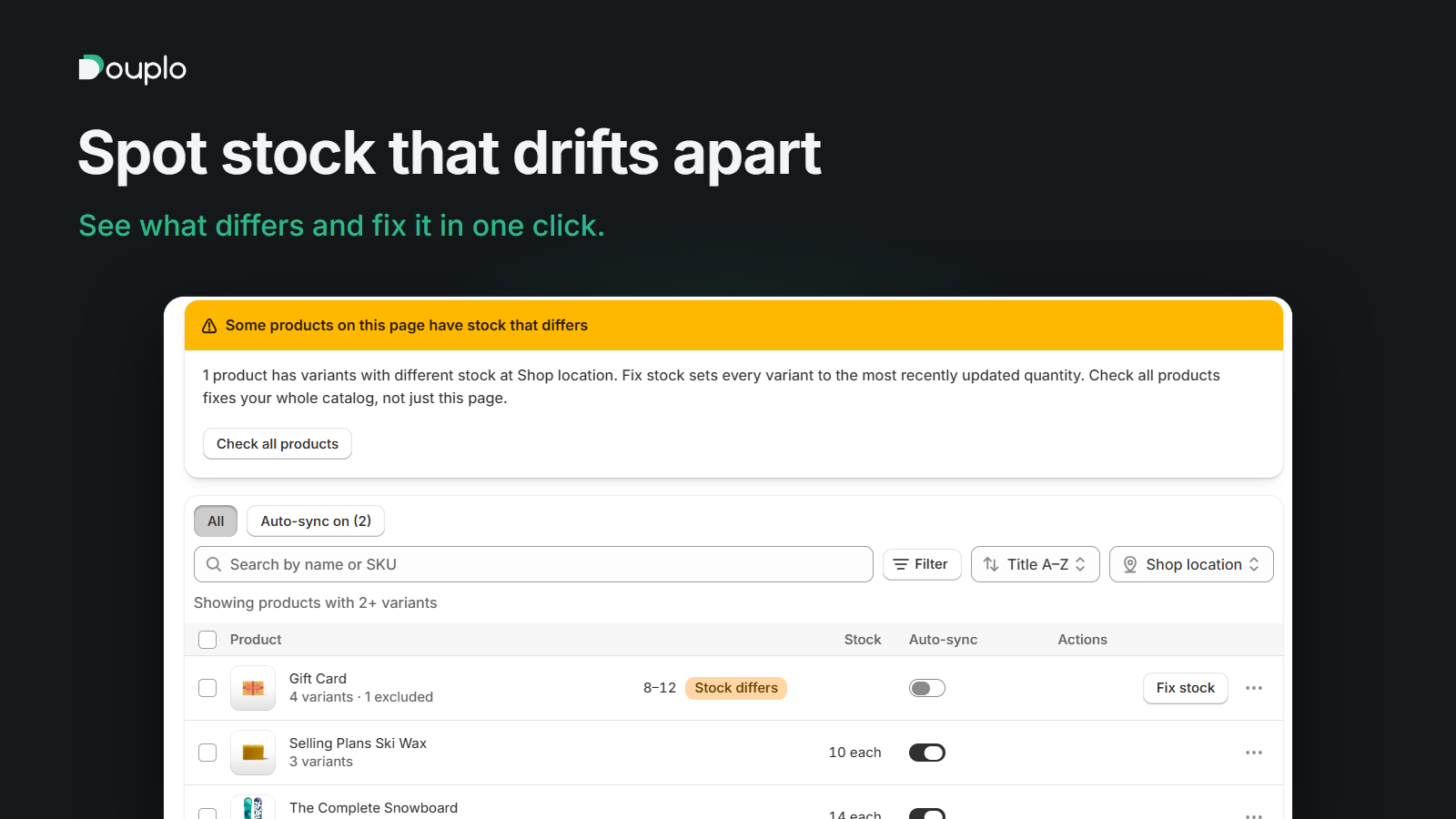
In Douplo, products whose variants differ at the selected location show a Stock differs badge, and Check all products checks the whole catalogue and corrects any product that has drifted.
How to fix it
- Pick a number you trust, usually the most recent real count, and set every variant that should match to it.
- Keep the variants matched from now on, either with a routine of manual edits or with an app that mirrors changes automatically.
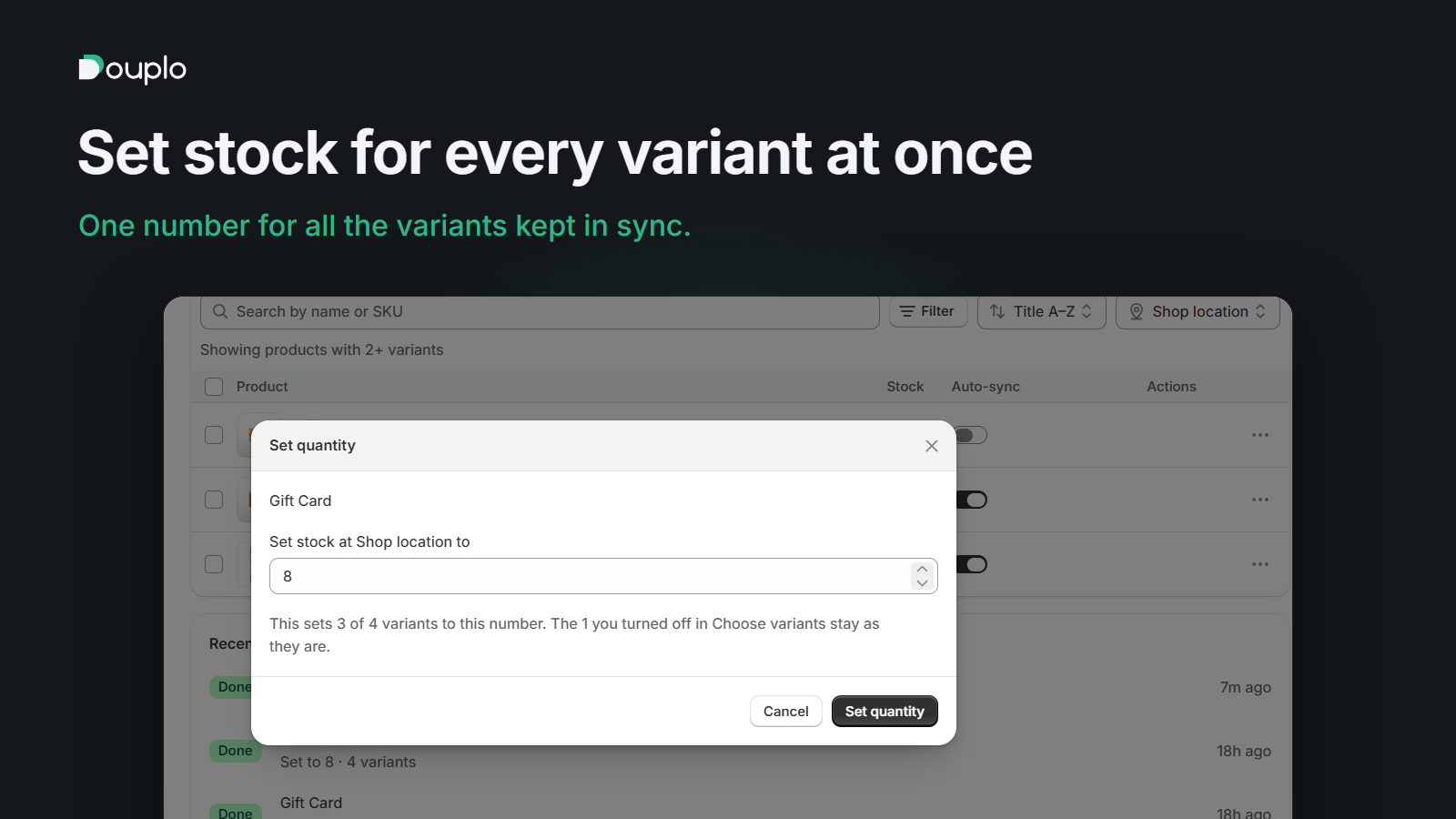
- In Douplo, Fix stock sets every variant kept in sync to the most recently updated quantity, and Set quantity lets you type the number yourself.
How to stop it happening again
- Choose one place where stock is changed, and avoid editing individual variants by hand.
- Turn on automatic mirroring for products whose variants share stock, so a sale on one variant updates the rest.
- Review the history now and then. A log that shows who or what changed which variant makes surprises easy to explain.
Douplo keeps the stock of every variant of a Shopify product in step, location by location. See how it works.